
Content
How to Use Highlighting
With the highlighter tool you can highlight words in 5 different colors to organize your ideas. You can check all of your highlights in Mote Mastery and export them to Google Docs
Let's try it now:
1️⃣ Step 1: Navigate to Reading Mode
Click the top icon in the Mote sidebar to open Reading Mode. You will know you are in Reading Mode when the book icon is showing.
2️⃣ Step 2: Select text to highlight
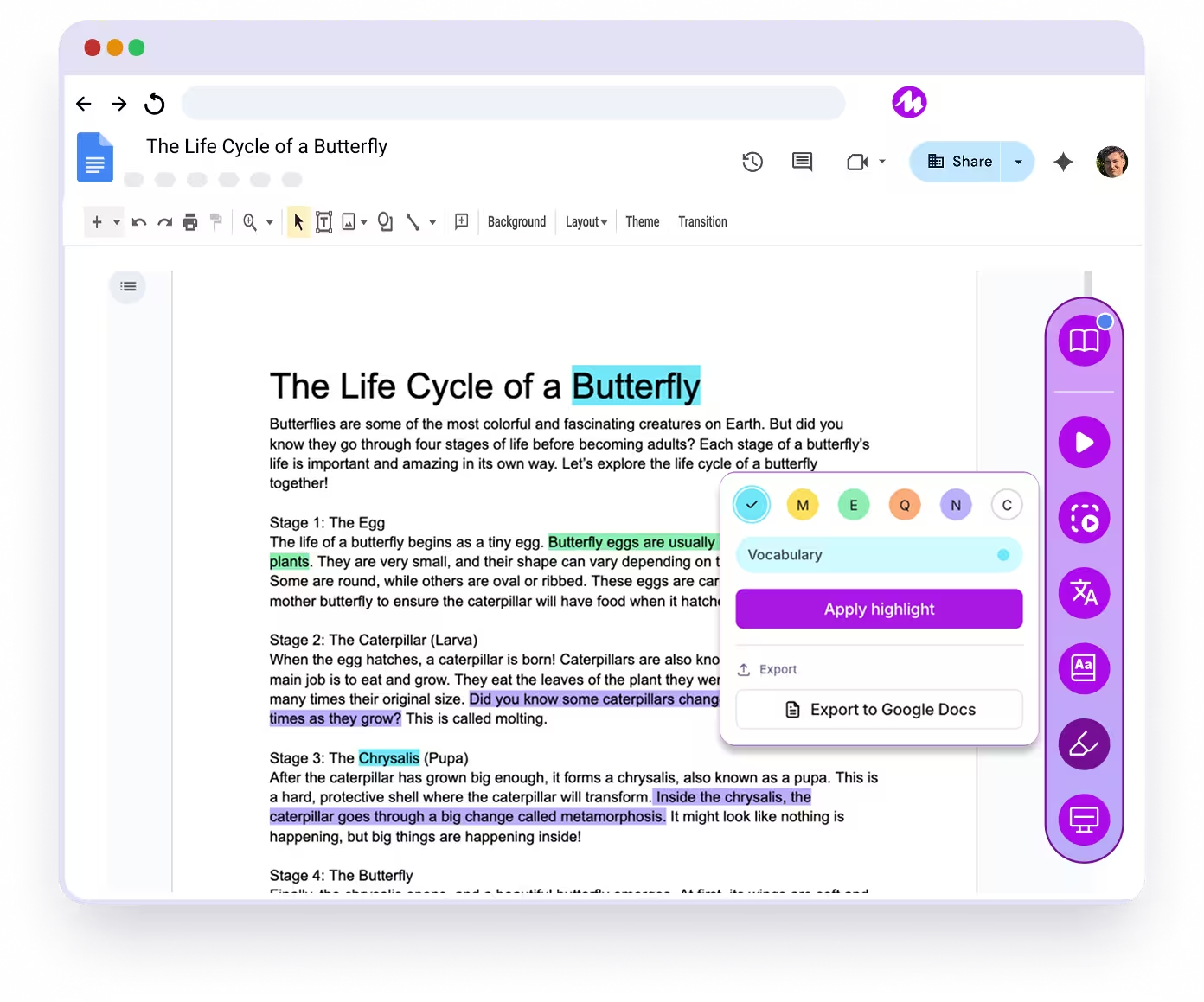
Once in Reading Mode, select any text on your webpage you want to highlight and click the highlighter button.
3️⃣ Step 3: Apply your highlight
With your text selected, choose your preferred highlight color and click Apply Highlight. That is it!
Using Labels
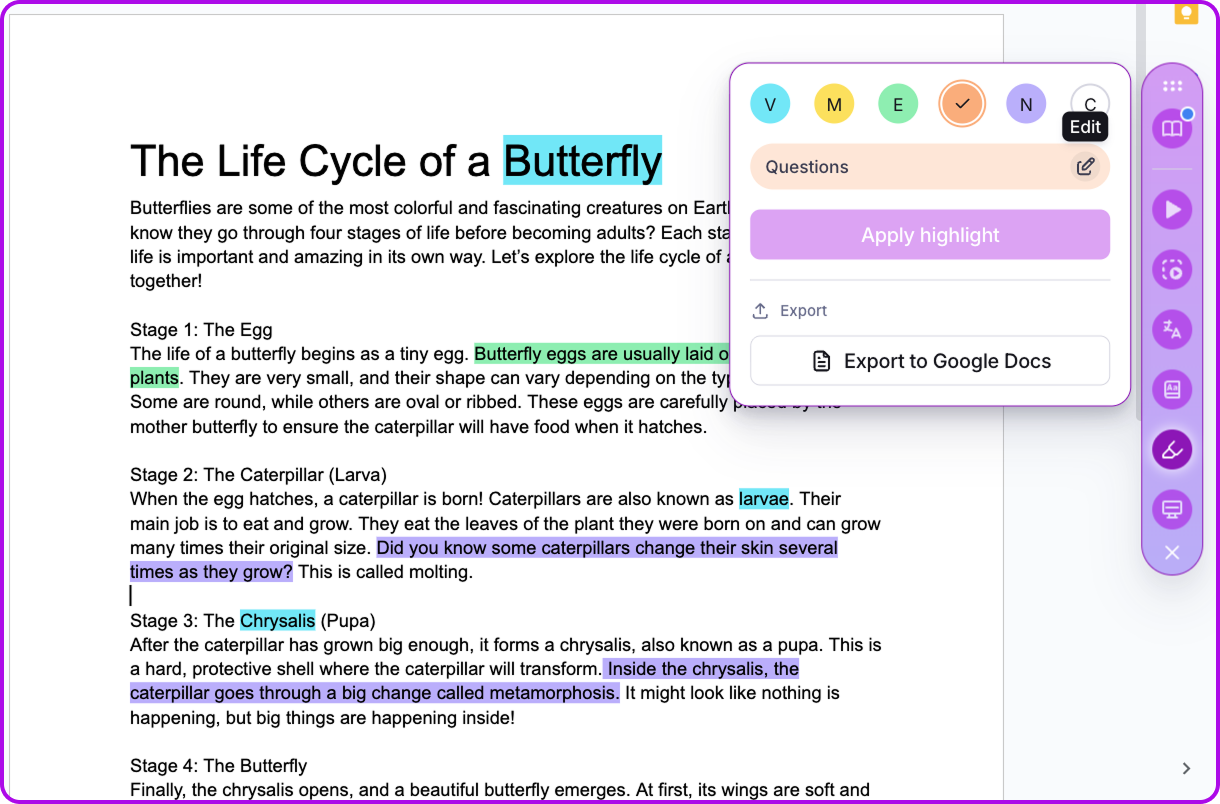
Let's also try changing the labels for each color. To rename a label, click the 'pencil' on the color, to edit the label, and then enter your preferred label name.
Exporting to Google Docs
You can export your highlights to a new Google Doc by clicking the button shown above. This creates a new Doc, and then populates it with your highlights, including vocabulary and images.
Mote Mastery Integration
Whenever you apply a highlight, it’s automatically saved in your Highlight List within Mote Mastery. To view your saved highlights, click the book icon in the sidebar and go to your Mote Mastery page. You'll see your highlights in one place, though vocabularly will be displayed separately on the Vocabulary tab.