
Content
Mote’s integrated translation features allow listeners to translate voice messages into over 50 languages. This ensures that feedback and instructions are equally accessible to all students, regardless of their language proficiency.
Feedback is essential to maintaining student connection and building confidence. Translatable voice messages offer a higher level of personalization and meaning for the listener and can help multilingual learners engage with content and assignments alongside their peers.
🎙️ Creating Translatable Audio Messages
To share a voice mote with translation options, just follow these simple steps:
Step 1️⃣: Enable Speech-to-Text and Record
Make sure Speech-to-Text is turned on, and select your preferred language. Record your Mote message, click the purple check mark, and a transcription will automatically appear.
Step 2️⃣: Review, Edit, and Translate
Review your transcript and make any necessary edits. You can also choose to translate your audio message into another language before sharing.
Step 3️⃣: Share with Accessibility in Mind
Share your Mote using a QR code, link, embed, or download. When others access it, they can view the transcript and choose from multiple text-to-speech language options for enhanced accessibility.

🎧 Translating Received Audio Messages
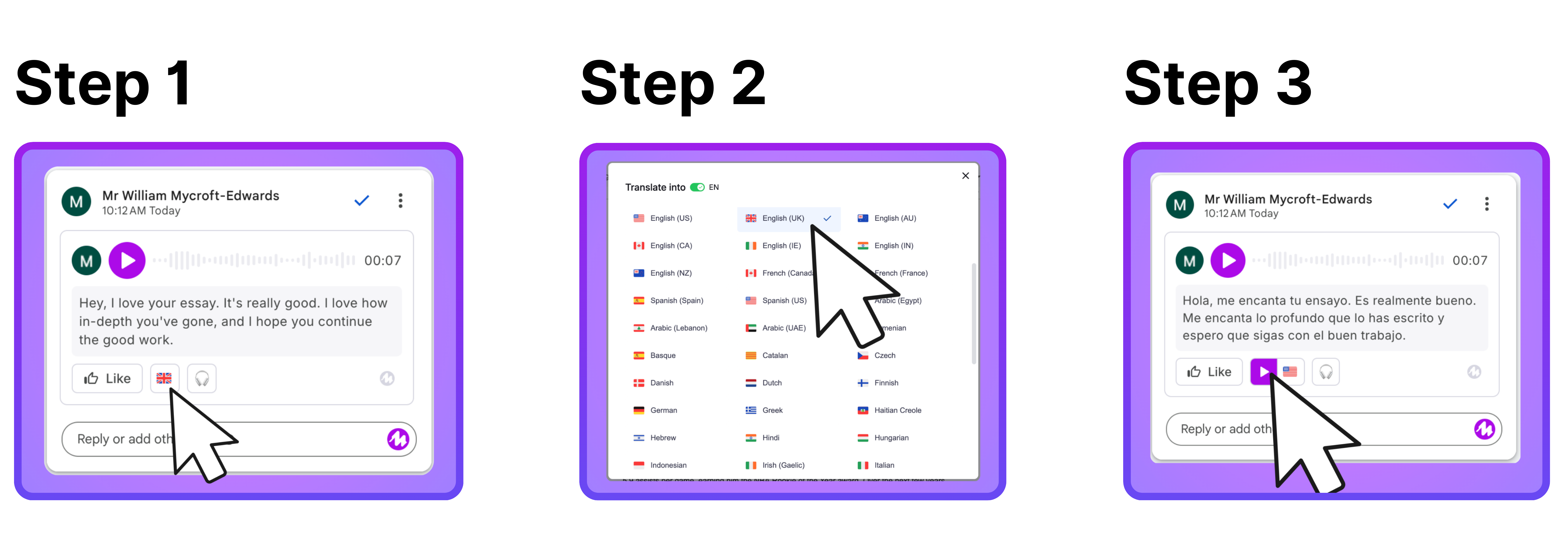
Translating voice messages is easy, too, and it doesn’t even require clicking on the Mote extension! Check out the steps below to enable Mote translation features as a listener:
Step 1️⃣: Select the Translate Button
Click the flag on a voice recording to open the list of languages offered by Mote.
Step 2️⃣: Choose Your Language
Select your preferred language to translate the voice recording into, and see the translated transcript appear.
Step 3️⃣: Amplifying Accessibility
Listeners can take translated messages to another level by activating Read Aloud. Hearing the words spoken out loud is as simple as clicking the play button underneath the text transcription.
Mote’s translation functionalities for listeners extend across all Google Workspace apps, including Google Classroom, Slides, Docs, Forms, and Gmail! Check out additional courses at the Mote Academy to learn more about how these accessibility tools work on other platforms.